
Signing In to Your Discord Account: Three Routes and the First Ten Minutes
October 20, 2026
BuyDiscord Help· Customer support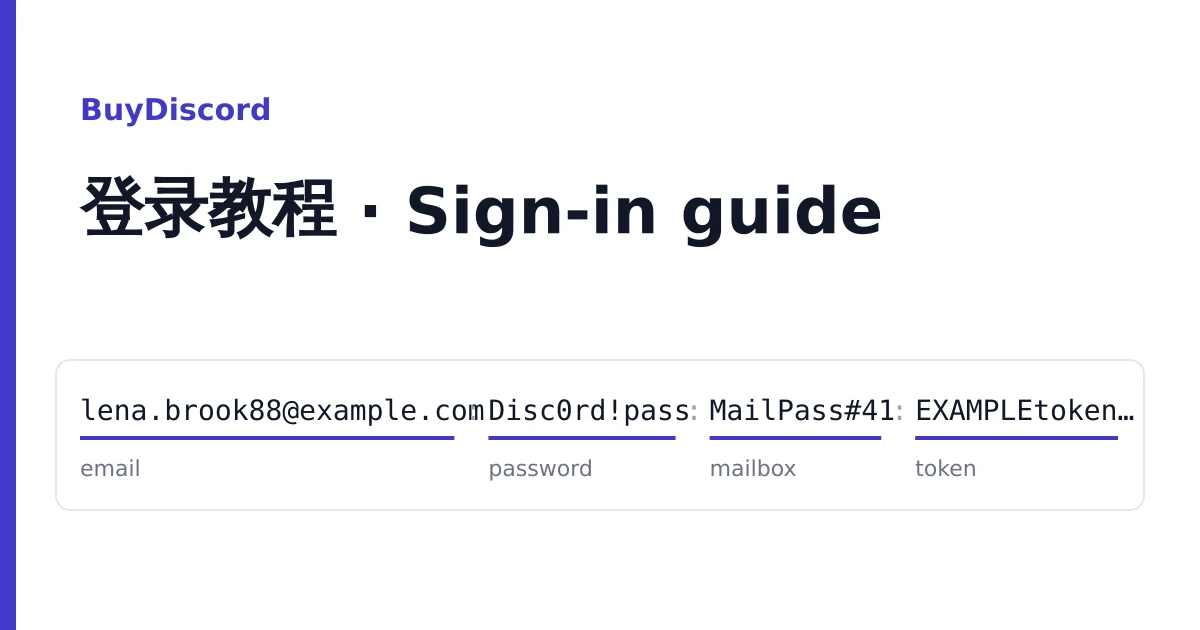
Your Discord accounts are on your order page, one account per line, with buttons to copy each line or download them all as a text file. Store that file privately: a line is a working key to the account.
Before you type anything, find out which way in your listing gives you. There are three, and the title says which.
| Route | What the line holds | Title words |
|---|---|---|
| A. Email and password | Email, Discord password, often a token at the end | "mail:password:token", "token included" |
| B. Password plus 2FA key | As route A, plus an authenticator key and sometimes backup codes | "2FA", "mail:password:token:2fa:backup_codes" |
| C. Token only | A token and no usable password | "login via token only" |
A line separates its fields with colons. An invented example with the mailbox included:
lena.brook88@example.com:Disc0rd!pass:lena.brook88@example.com:MailPass#41:EXAMPLEtokenNOTreal.Xy12.example_onlyRead it as: email, Discord password, the email again, the mailbox password, then the token. Without the mailbox the middle pair is missing. If you cannot tell which field is which, ask in a ticket before trying passwords at random, because repeated failures lock sign-in for a while.
Route A: email and password
- Open discord.com/login in a browser or the Discord app.
- Paste the email, then the Discord password. Copy each field on its own so no colon or space comes with it.
- If Discord sends a confirmation to the email and your listing includes the mailbox, sign in to the mailbox (Rambler, GMX, Outlook, Gmail or mail.com, as the address shows) and click the link there.
The token at the end of the line is a record of the seller's last session. You do not need it to sign in this way, and it stops working once you change the password.
Route B: password plus 2FA key
Sign in as in route A. When Discord asks for a six-digit code, paste the 2FA key (a run of capital letters and digits) into https://checkkit.net/en/online-2fa-code-generator and type the code it shows within 30 seconds. Backup codes are single-use spares: keep them aside in case the key fails, and do not spend them on a normal sign-in.
Route C: token-only listings
These listings are sold for tools that work with tokens and have no password you can type. We do not give instructions for signing in with a token. If you want an account you can open from the login screen and secure yourself, buy from a route A or B listing instead.
The first ten minutes
- Open User Settings, Devices, and log out every session except yours.
- Change the password. This also ends the delivered token.
- If the mailbox came with the account, change the mailbox password first, then decide whether to keep that address or switch Discord to one of your own.
- Turn on two-factor with your own authenticator app. If the account already had 2FA, remove it and add it again so Discord issues a key only you hold, then save the new backup codes.
Discord's terms do not allow accounts to be sold or transferred, and Discord may ask any account to verify again. Use the account within its Community Guidelines.
What Discord shows, and what to do
"Login or password is invalid"
Copy the email and password again, one at a time. Make sure the email is the first field, not the mailbox address further along the line. Try once more, then stop and report.
"New login location detected"
Discord wants you to confirm from the account's email. With the mailbox included, open it and click the link. Without it, you cannot confirm, so report the line instead of retrying.
The 2FA code is rejected
Check the time on your device is set automatically, generate a fresh code and type it at once. If it still fails, try one backup code; if that fails too, report it.
A phone number is requested
Take a screenshot of that screen. If it appears on your first sign-in inside the warranty window, it is covered.
"Account disabled"
Screenshot it before clicking anything.
Reporting a line
Open a ticket from your order page before the warranty window on the listing ends. Paste the email of the line (not the passwords), say which route you used, and attach the screenshot. A faulty account is replaced from the same listing. Signing in does not void the warranty; bans after bulk or automated activity are not covered. For your next order, the home page explains the listing tags.